
Edit the Execution Schedule for a Scheduled Job
A Scheduled Job is typically executed based on defined schedule. For example, you could create a Scheduled Job that runs daily at 6:00 AM to refresh all the Calculated Attributes in your Loyalty account. The schedule can be defined to run once at a date and time in the future, or on a recurring frequency.
To edit the execution schedule for a Scheduled Job:
-
Select Admin from the top navigation bar, then select Jobs > Scheduled Jobs from the side navigation menu. The Scheduled Jobs screen is displayed. By default, List View is selected.
-
Search for and select the desired Scheduled Job (see Search for a Scheduled Job for more information on the available search options). The Scheduled Job Details screen is displayed, with the Definition tab selected by default.
-
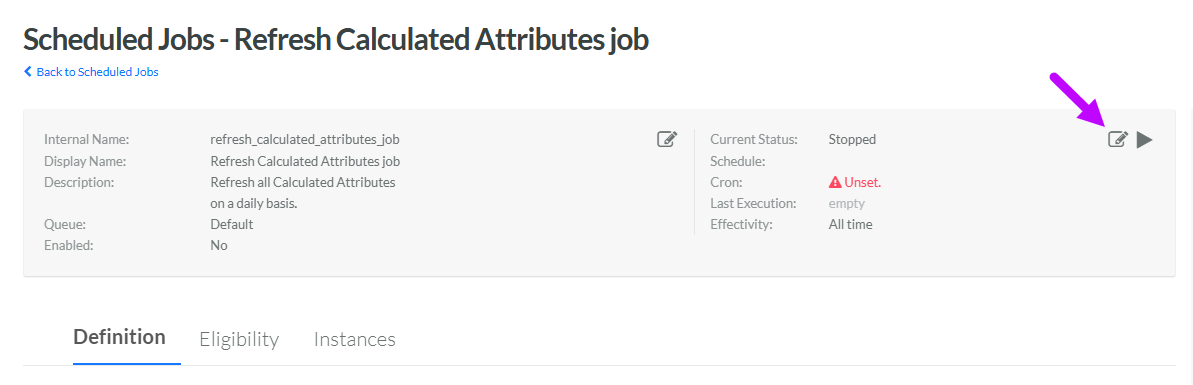
In the top-right corner of the header area of the screen, click the Edit icon. The Edit Schedule pop-up window is displayed. See below for more information on how to define a schedule that executes on demand only, that executes once, or that executes on a recurring frequency.
Execute On Demand Only
To configure a Scheduled Job to execute only when indicated by a user:
-
Within the Edit Schedule pop-up window, toggle Enabled to On.
-
From the Recurrence drop-down menu, select On Demand.
-
Click Save.
See Manually Execute a Scheduled Job for more information on how to execute the Scheduled Job on demand.
Execute Only Once
To configure a Scheduled Job to execute once at a specified date / time:
-
Within the Edit Schedule pop-up window, toggle Enabled to On.
-
From the Recurrence drop-down menu, select Once.
-
Click into the Execute Once On field. A calendar pop-up window is displayed. Select the desired date when you want the import to execute.
-
Within the calendar pop-up window, click the Clock icon. Define the time when you want the export to execute.
-
From the Time Zone menu, select the time zone to use when determining the time to execute.
-
Click Save.
Execute on a Recurring Schedule
To configure a Scheduled Job to execute on a recurring frequency:
-
Within the Edit Schedule pop-up window, toggle Enabled to On.
-
From the Recurrence drop-down menu, select Repeat.
-
Next to Schedule Composer, select an interval:
-
Hour: Select the minute past the hour.
-
Day: Select the time of day. Executing once daily is the recommended frequency for most Scheduled Jobs.
-
Week: Select the day of the week, and the time of day.
-
Month: Select the day of the month, and the time of day.
-
Year: Select the day, the month, and the time of day.
-
-
As you configure the interval above, the CRON Expression field is automatically populated with the associated CRON expression. Optionally, to manually edit this expression, check Advanced Mode.
-
Optionally, using the From and To fields, define the import schedule begin and end date. If you leave these date fields blank, the schedule will run indefinitely.
-
From the Time Zone menu, select the time zone to use when determining the time to execute.
-
Click Save.
